1. Choose a useful reference
Upload a JPG, PNG or WebP, paste a screenshot, or use a direct image link. A clear subject and readable lighting usually produce a more useful prompt than a crowded collage.
Use image to prompt to turn a reference into clear, editable words. Keep the details you like and make the next idea your own.
Drop an image here, or click to upload. You can also paste an image here.
JPG, PNG or WEBP · up to 20 MB · min 256 px
This generation: 5 credits
Sign in to use your credits. Welcome credits can be used for image to prompt analysis.
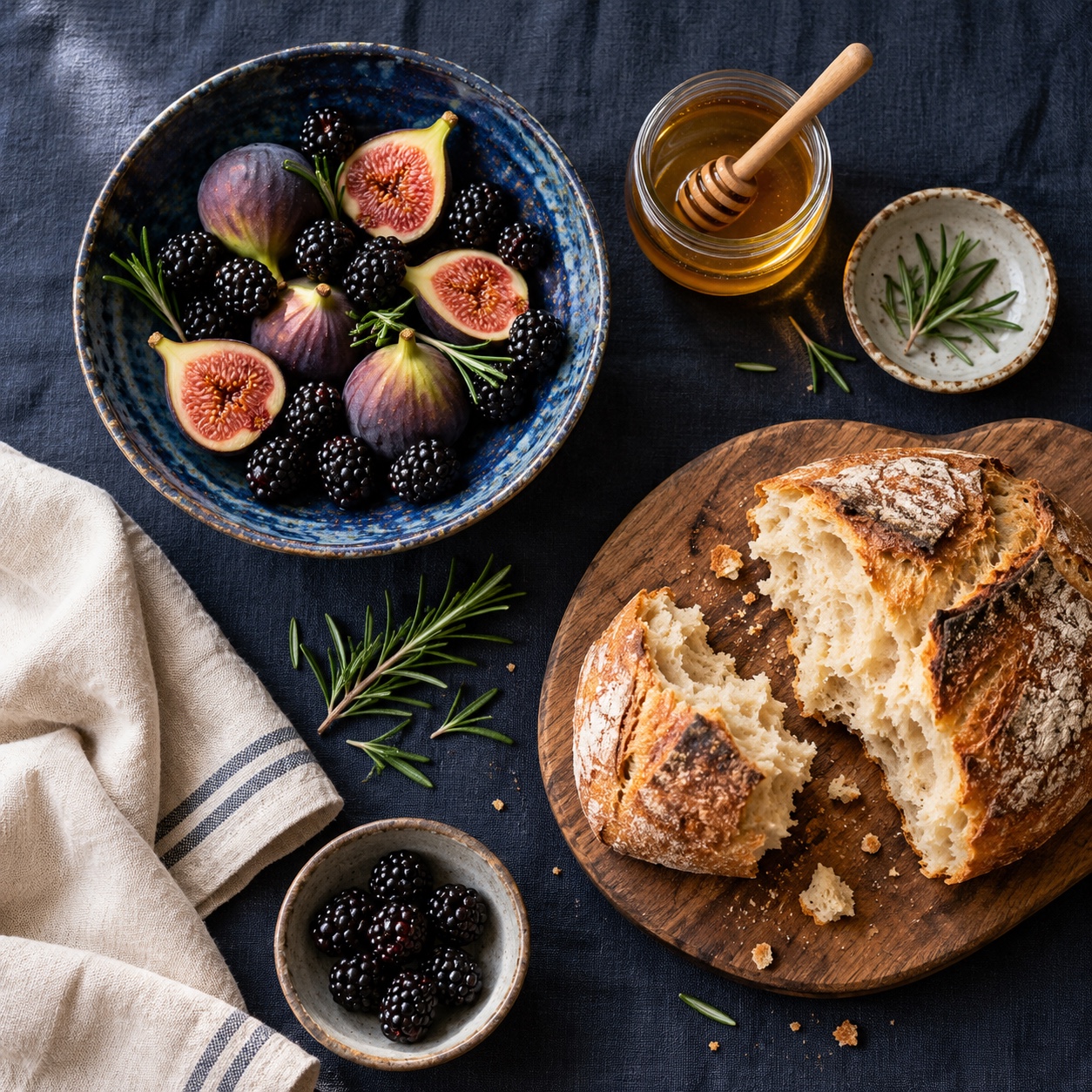
An overhead breakfast still life is arranged on deep navy linen. A blue glazed bowl holds ripe figs, blackberries, and rosemary beside torn sourdough on a wooden board, a clear jar of amber honey, and a folded cream napkin. Soft window light from the upper left brings out the ceramic glaze, bread crust, glass reflections, and woven fabric, giving the scene a calm editorial mood.
See a composition you like but cannot quite put into words? The tool turns the visible choices in a picture—subject, setting, light, color and framing—into a prompt you can edit and reuse.
It is closer to a practical visual brief than a hidden-prompt extractor. The result gives you the details worth carrying forward, while leaving room to change the subject, mood or setting for your next image.
Upload a JPG, PNG or WebP, paste a screenshot, or use a direct image link. A clear subject and readable lighting usually produce a more useful prompt than a crowded collage.
Choose plain language, structured fields, Stable Diffusion or Midjourney. Each mode writes the result for a different workflow, so you only generate the format you plan to use.
Read the result beside the reference, remove anything unnecessary and correct details the model missed. Then copy the prompt or continue with the original image in Image to Image.
The best output depends on what you want to preserve. These three common references call for different kinds of detail.
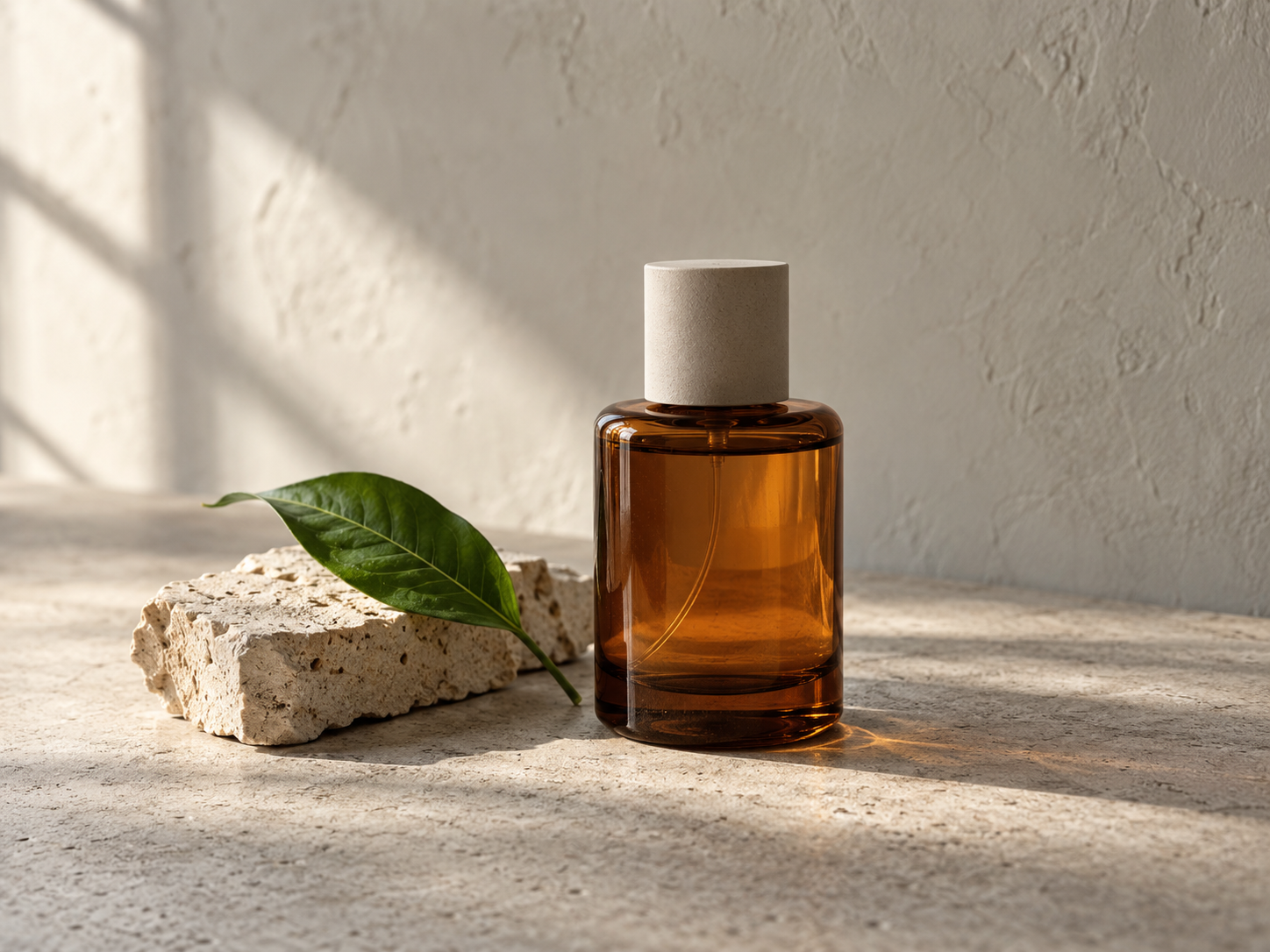
Pull out the object, surface, backdrop and direction of light. This gives you a cleaner brief for restaging the product without losing its recognizable details.
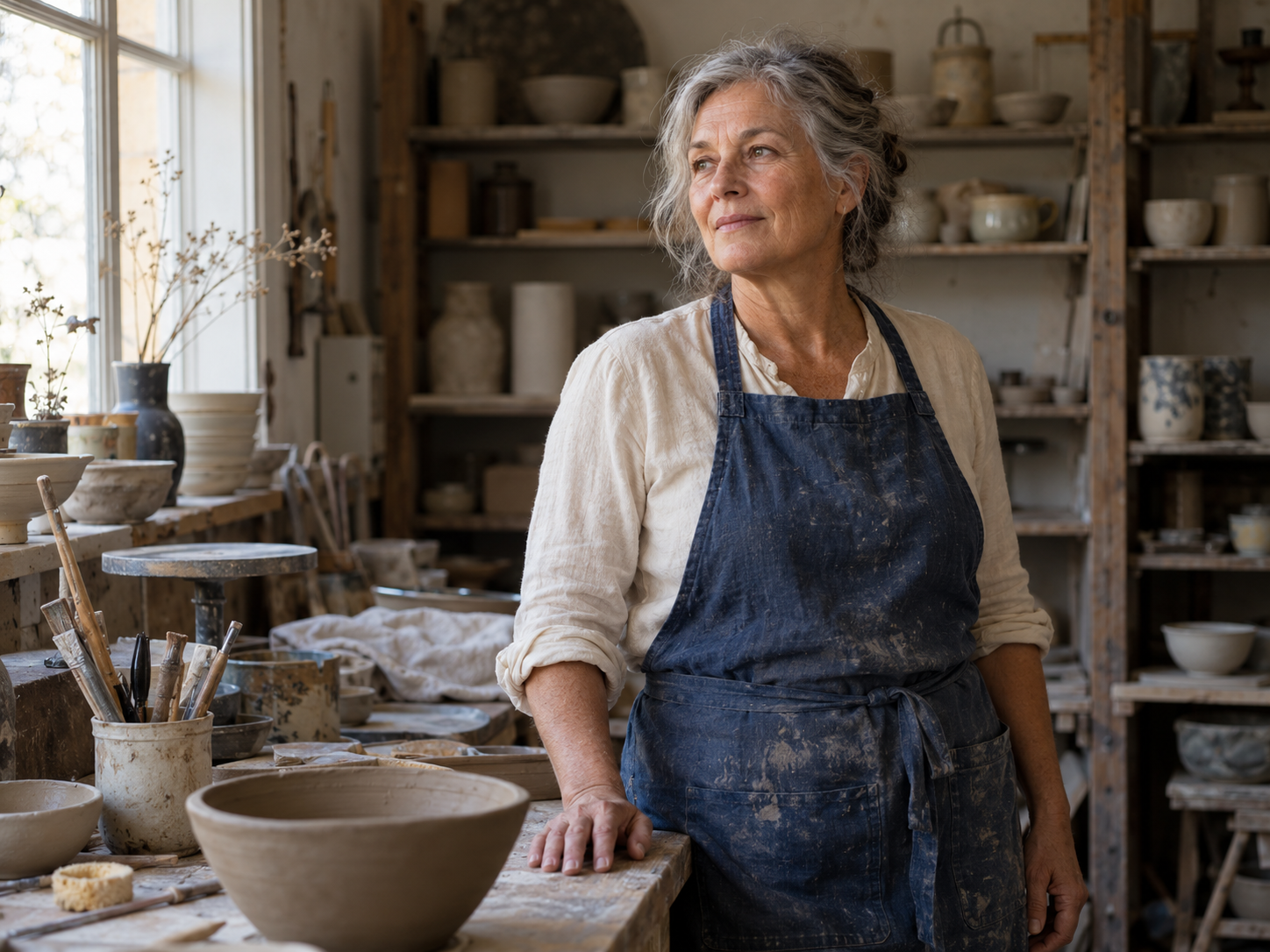
Describe visible clothing, pose, framing and mood rather than guessing identity or background. Small accessories and expressions are worth checking before you reuse the prompt.
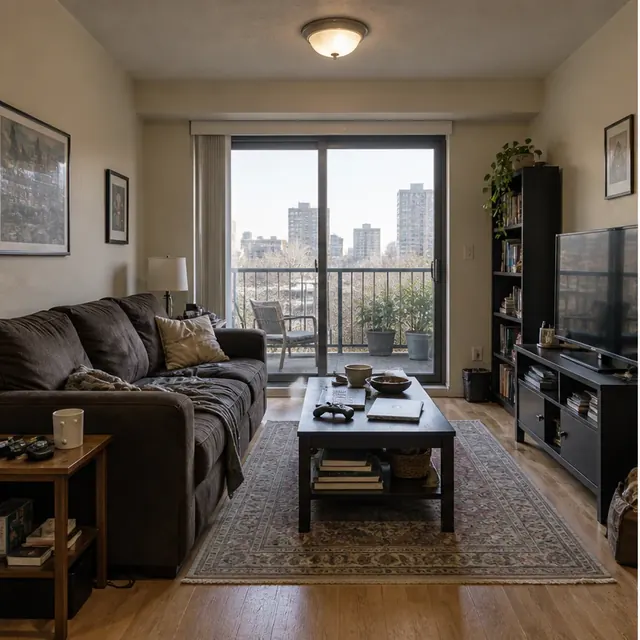
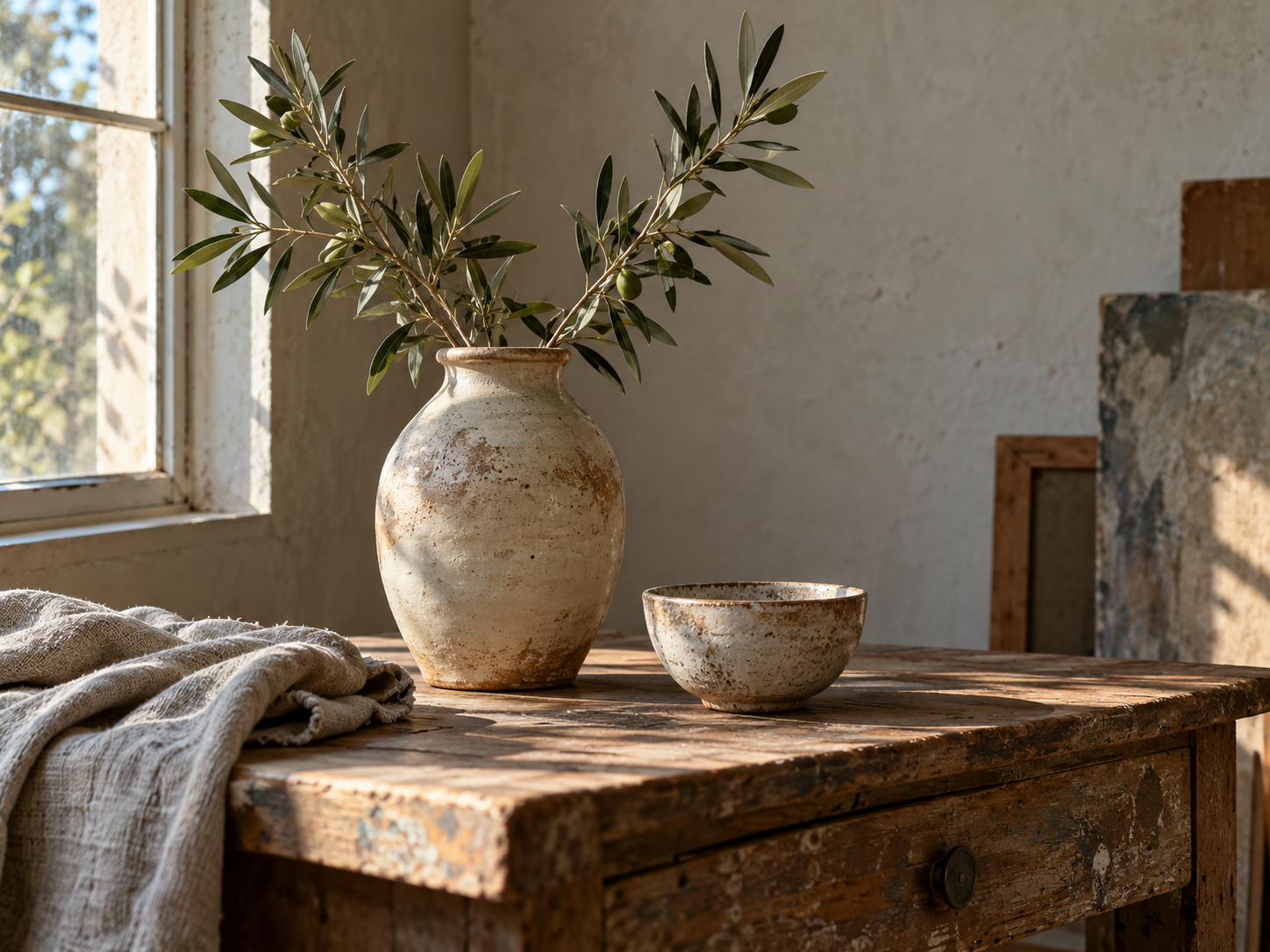
Separate layout from materials, and subject from style. Details such as warm wood, window light or a hand-drawn texture are easier to keep when they are named clearly.
Each generation returns one selected format. Compare the examples below before choosing the mode that fits your workflow.
A readable paragraph for understanding a scene or starting a prompt in almost any image model.
An overhead breakfast still life on deep navy linen, with ripe figs, blackberries, torn sourdough and amber honey. Soft window light brings out the ceramic glaze and woven fabric, creating a calm editorial mood.
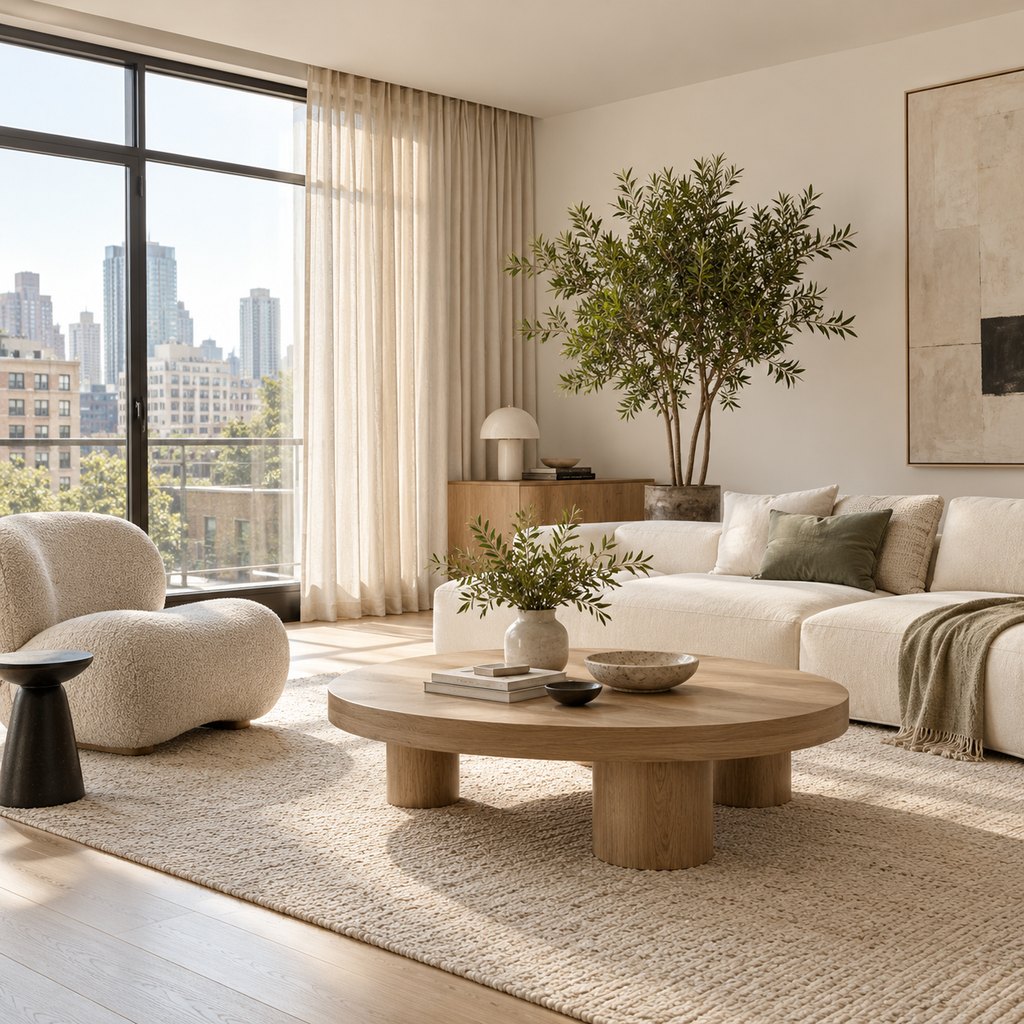
Separate fields make it easy to inspect or replace one visual choice without rewriting everything else.
Subject: contemporary living room
Setting: high-rise apartment
Style: warm organic minimalism
Lighting: diffused morning sun
Colors: ivory, pale oak and muted sage
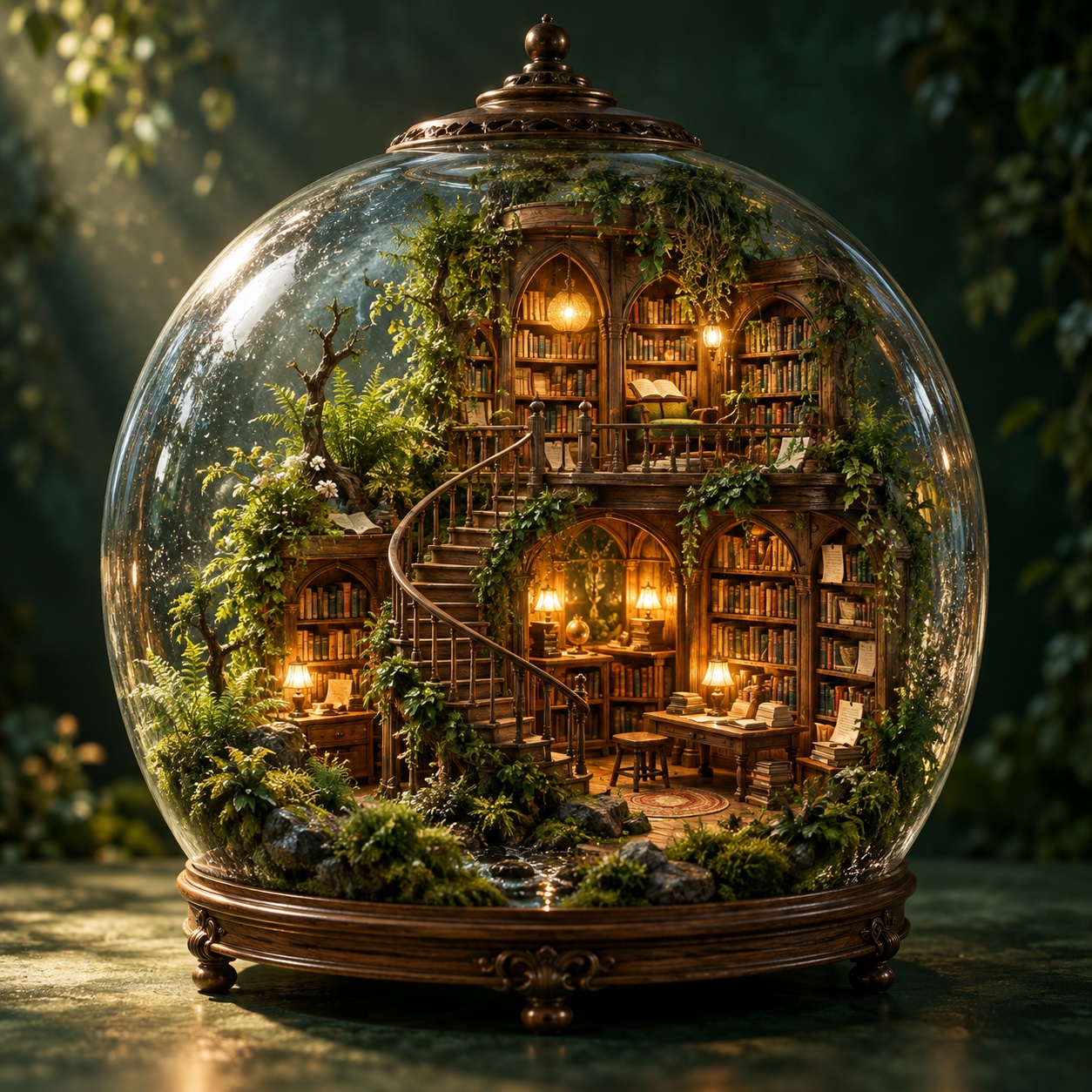
Compact visual tags are followed by a separate negative prompt for common open-model workflows.
intricate miniature library inside a glass terrarium, arched walnut shelves, moss and ferns, amber reading lamps, cinematic volumetric light, detailed 3D concept art

Negative prompt: people, plastic surfaces, flat lighting, blur, text, watermark
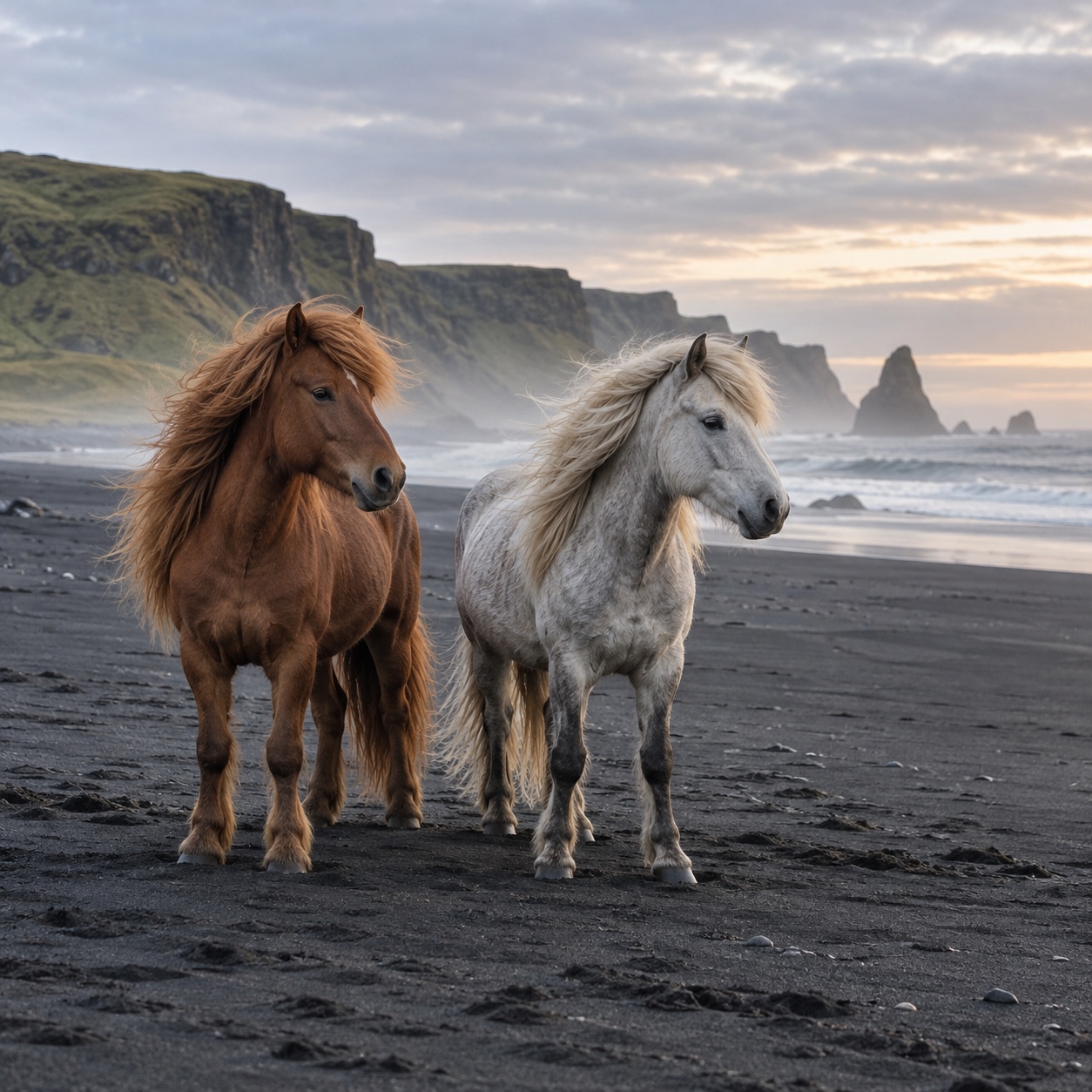
A natural visual direction ends with useful aspect ratio, stylize, chaos, quality and exclusion parameters.
Two Icelandic horses on a black-sand beach at dawn, long manes moving in the coastal wind, morning mist, soft overcast light, authentic travel photography, subtle film grain --ar 1:1 --stylize 175 --chaos 5 --quality 1 --no people, harnesses, text, watermark
You can use welcome credits after signing in. Each successful analysis costs 5 credits; copying and editing cost nothing. Welcome credits depend on your account and the current signup offer. This is not an unlimited free service.
No. The tool describes what it can see, rather than reading hidden generation settings. Different prompts can produce similar pictures. Use the result as an editable interpretation, and check important details against the reference before creating another image.
Upload one still JPG, PNG or WEBP file, up to 20 MB, with both sides at least 256 pixels. Direct HTTPS image links also work when the source website permits access. If a link cannot be imported, download the file and upload it instead.
Yes. Describe Image uses ordinary English, while the Stable Diffusion and Midjourney formats add conventions for those tools. You can still edit or remove any parameters before using the prompt elsewhere; exact results and supported features vary between platforms.
Your recent analyses are saved to your account and can be reopened from the tool. They are not shown in Settings yet. Your image is also sent to the AI provider for analysis; see our Privacy Policy for details.
A failed or timed-out analysis does not consume credits. Credits are charged only when a valid result is saved. If the connection drops, the tool checks the same request for a result before asking you to try again, rather than automatically submitting another paid analysis.
Image to prompt produces a written description. Image to Image produces a new picture using a source image and your instructions. Start with image to prompt when you need words for a visual idea; switch to the image editor when you are ready to make a change.
Choose a picture with a clear subject and enough detail to understand the scene. Avoid tiny thumbnails, heavy compression or overlapping screenshots. Image to prompt works from what is visible, so a cleaner reference usually gives you a more specific description with fewer details to correct.
Use image to prompt to put the look into words, then bring your reference into Image to Image and decide what changes next.
Try image to prompt